


Check the settings before a laptop keyboard replacement
Some “broken” keyboards are actually settings. These are worth two minutes before you pay for any new part:
- Letters typing numbers (for example U, I, O turning into 4, 5, 6) on a small laptop with no separate number pad: Num Lock has switched on the embedded keypad. Press Num Lock, or Fn + Num Lock.
- Keys ignored unless held down: Filter Keys is on. Check Settings → Accessibility → Keyboard. Holding the right Shift key for several seconds can switch it on by accident.
- Wrong symbols such as @ and ″ swapped: the Windows keyboard layout is set to UK instead of US. Most laptops sold in Malaysia use the US layout.
- Function keys behaving oddly: the Fn lock may be toggled — often Fn + Esc.
To be sure it is hardware, open the on-screen keyboard and test, or plug in a USB keyboard. If the USB keyboard works perfectly and the built-in one does not, the built-in keyboard (or its cable) is the problem. If keys also misbehave in the BIOS screen, it is definitely hardware, not Windows.
Riveted keyboards and palmrest replacement
Here is the part most people do not expect. On older and business laptops, the keyboard is a separate part held with a few screws or clips, and swapping it is straightforward.
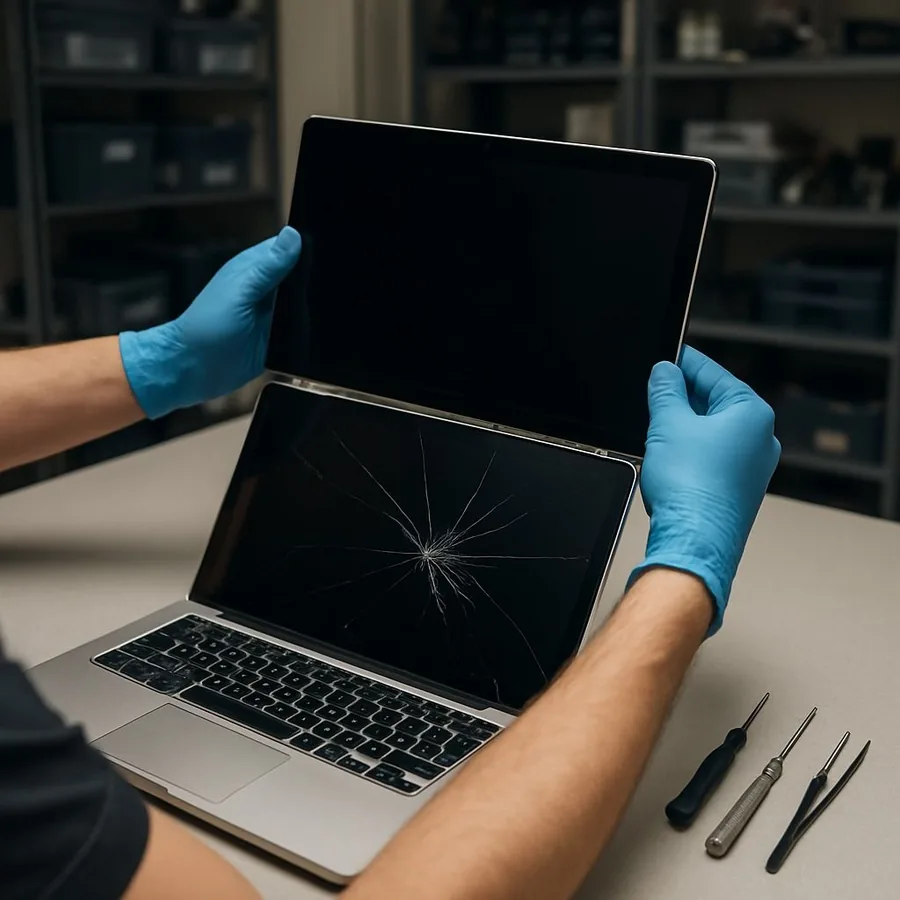
On many modern laptops — a lot of slim HP, Asus, Acer and Lenovo consumer models, and MacBooks — the keyboard is fixed to the top case (the palmrest) with dozens of small plastic rivets that are melted in at the factory. It is not designed to come out on its own. That leaves two honest options:
- Replace the whole top case with the keyboard already fitted. This is the clean, factory-style repair. It costs more because you are buying the palmrest as well, and sometimes the touchpad or power button moves across.
- Replace only the keyboard and secure it with small screws or adhesive instead of the original rivets. It costs less, but the result depends on the model and it is not as neat as a new top case.
We tell you which type your laptop has, what parts are available and the price of each route before we start. If the palmrest is cracked anyway, the top case route usually makes more sense.
Liquid spills on the keyboard
Spills are the most common reason keyboards fail. Water dries; sweet drinks like teh tarik, Milo and soft drinks leave sticky residue that jams keys and slowly corrodes the thin circuit layers under them.
The keyboard sits directly above the motherboard on most laptops, so liquid that gets past the keys can reach the board. That is why we never treat a spill as “just the keyboard” until we have looked underneath. If it has reached the board, the job becomes laptop water damage treatment, and the keyboard is replaced after the board is cleaned.
If you have just spilled something: switch the laptop off by holding the power button, unplug it, and turn it upside down in a tent shape so the liquid drains out rather than in. Do not switch it on to “check” — that is how short circuits happen.
When to bring it to us
DIY is enough when it is a setting (Num Lock, Filter Keys, layout) or a single keycap that has popped off with its clip intact — those can often be clicked back on gently. A USB keyboard is a perfectly fine stop-gap if you need to finish an assignment tonight.
Bring it in when:
- A row or block of keys has stopped working, which points to the keyboard circuit or its cable.
- Keys type by themselves or repeat, which can make the laptop unusable and even stop it booting properly.
- Anything was spilled on it, even if it seems fine now.
- A keycap has broken clips, or you are not sure how it fits — forcing it can break the tiny hinge underneath.
We will check the fitting type and give you options before ordering parts. Book a drop-off or see all our laptop repair services.
Before you come in
- Check Num Lock, Filter Keys and the keyboard layout in Windows settings.
- Test with the on-screen keyboard and a USB keyboard to confirm it is hardware.
- Clean around stuck keys with a soft brush or gentle compressed air, laptop switched off.
- After a spill: power off, unplug and turn it upside down — do not switch it back on.
- Note which keys fail (photo of the keyboard helps) and send us your model number.