

Logical or physical: the two kinds of hard disk failure
Every hard disk data recovery job starts by working out which kind of problem you have.
Logical failure means the drive hardware works, but the way files are organised has broken. Signs: the drive spins normally and quietly, Windows sees it, but it shows as RAW, asks you to format it, or folders have vanished. Causes include sudden power loss, unplugging without ejecting, malware or a failed Windows update. These often recover well, because the data is still on the platters.
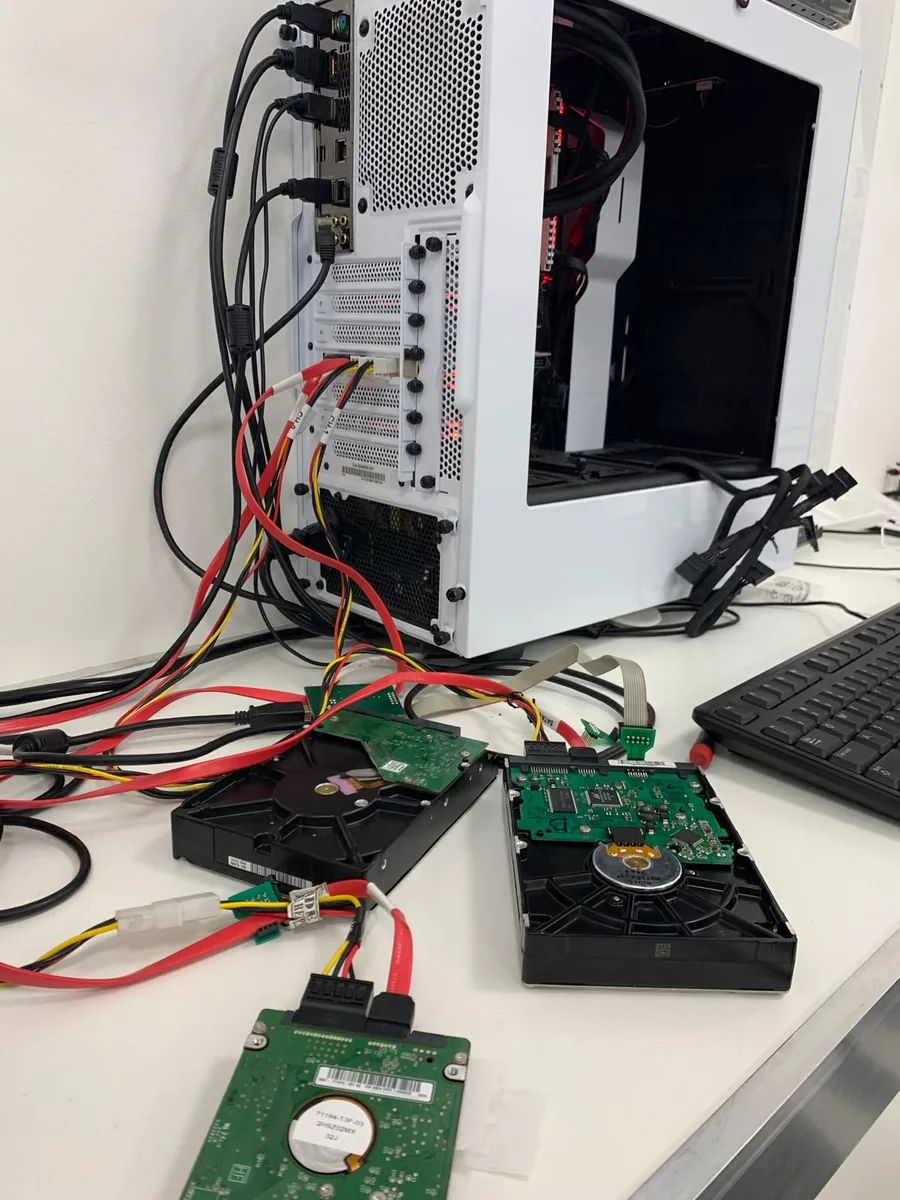
Physical failure means a part inside the drive has failed:
- Read heads: repeated clicking or ticking as the heads fail to read and reset.
- Motor or stuck heads: beeping or buzzing with no spin, common in 2.5-inch laptop and portable drives.
- Electronics: no spin and no sound at all, sometimes after a power surge or the wrong adapter.
- Bad sectors: the drive works but slows to a crawl and freezes on certain files.
Some physical failures need specialist clean-room work to open the drive. If yours is one of those, we tell you plainly what that means for cost and chances before you decide anything.
Stop using it: what not to do
A failing hard disk gets worse every time it spins. The common “fixes” people find online often destroy the data they were trying to save.
- Do not run CHKDSK or disk repair tools. They write changes to a drive that is already struggling, and can “fix” the file system by throwing away your files.
- Do not keep plugging it in to see if it works today.
- Do not run recovery software on a clicking or very slow drive. It reads the whole disk repeatedly, which a weak drive may not survive.
- Do not put it in the freezer, tap it, or open it. Opening a drive outside a clean environment lets dust onto the platters.
- Do not format it, even if Windows asks. Click Cancel.
If the drive is in a laptop that still boots, shut it down. If it is an external drive, unplug it. Then bring it in. Our article on what to do when a hard drive is failing covers the early warning signs.
External and portable drives
Portable hard disks travel in bags, get knocked off desks and are often the only copy of years of photos. They are among the most common drives we see.
A few things are different about them:
- Dropped while running is the worst case — the heads can strike the platters. Do not keep trying it on different computers.
- Broken USB connector: on many portable drives the USB port is part of the drive’s own circuit board, not a separate adapter. You cannot just move the disk into a new case.
- Built-in encryption: some portable drives encrypt data using their own circuit board. Recovery then needs that original board, so do not throw any part away.
- Desktop external drives with a separate power adapter can fail because of the adapter or enclosure, not the disk. That is a good outcome — we check it.
Bring the drive with its cable and adapter. We will tell you which case yours is. And once your files are back, keep a second copy — our 3-2-1 backup guide explains a simple routine.
When to bring it to us
DIY recovery is reasonable only in one situation: the drive sounds normal, is detected at a normal speed, and you accidentally deleted or formatted something. Then good recovery software, saving recovered files to a different drive, can work. Our deleted file recovery page explains how to do that safely.
Bring it to us when:
- The drive clicks, beeps, grinds or does not spin.
- It is not detected, or disappears and reappears.
- It is very slow or freezes when you open files.
- It was dropped, especially while running.
- The data is irreplaceable and you only get one chance.
We are at Plaza Idaman, Gombak, close to Batu Caves and Setapak. Call or WhatsApp for urgent business data. See our data recovery page for other storage types, or book a drop-off.
Before you come in
- Switch the drive off and leave it off if it clicks, beeps or grinds.
- Do not run CHKDSK, disk repair or recovery software on a failing drive.
- Click Cancel if Windows asks you to format the disk.
- Bring the cable, enclosure and power adapter with an external drive.
- Make a short list of the folders and file types that matter most.