


Why delete and format aren’t enough
When you delete a file, the computer simply marks the space as free. The data stays there until something overwrites it, and free recovery tools can often bring it back. A quick format does much the same thing to the whole drive. We know this well — recovering “deleted” files is part of our data recovery work.
That’s why a laptop sold online or a PC dropped at a scrap shop can still hold photos, saved passwords, chat backups, bank statements and client files.
For your own laptop, Windows and macOS have reasonable built-in options. On Windows, “Reset this PC” with “Remove everything” and the clean-drive option does much more than a quick format. On a Mac with Apple silicon or a T2 chip, “Erase All Content and Settings” removes the encryption keys. These are fine for a personal laptop you’re selling — our guide on wiping a laptop before selling shows the steps.
Secure data destruction becomes necessary when the laptop won’t boot, you have loose drives, the data is business or client data, or you need a record of what was done.
HDD vs SSD: different drives, different methods
Hard disks and SSDs store data in completely different ways, so the same method doesn’t suit both.
Hard disks (HDD)
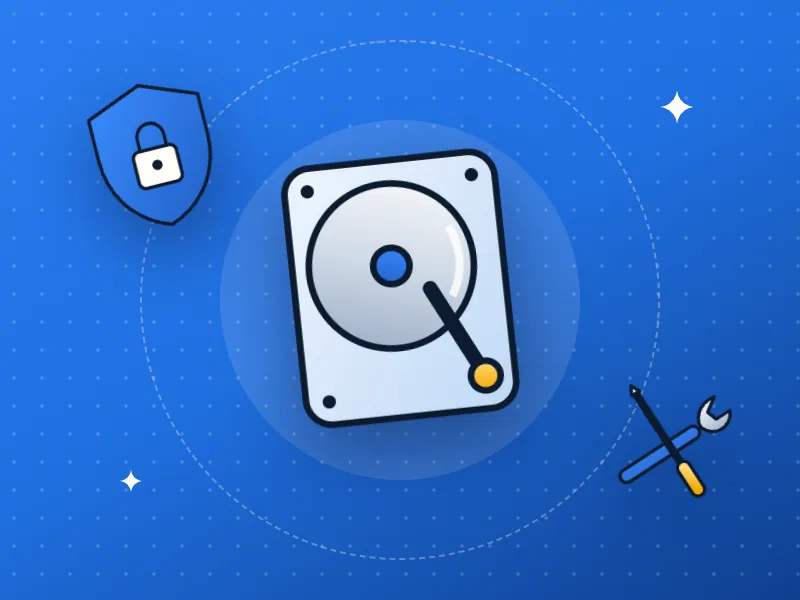
A hard disk writes data to spinning magnetic platters. Overwriting every sector of the whole drive — not just the files — is the standard way to wipe one for reuse; widely used guidance such as NIST SP 800-88 treats a full overwrite as sufficient for modern hard disks. If the drive is faulty and can’t be fully overwritten, or the data is very sensitive, the platters are physically damaged so the drive can never spin up and be read.
SSDs and NVMe drives
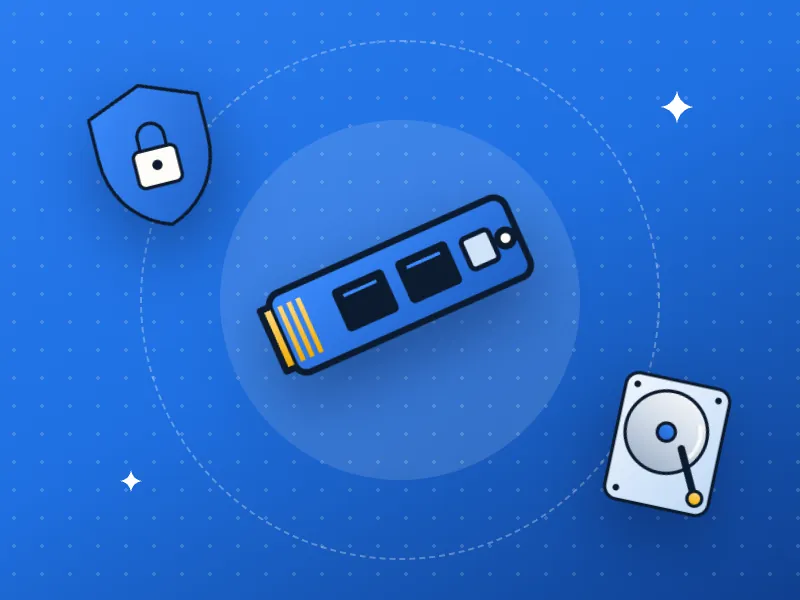
SSDs spread data across memory chips and keep spare areas the computer can’t directly reach. Overwriting with ordinary software can miss those areas. The right approach is the drive’s own built-in secure erase or sanitize command, or, for encrypted drives, destroying the encryption key. For physical destruction, the memory chips themselves must be broken — a single hole through the case can miss them.
Data destruction, PDPA and keeping your drive
If your business handles customer or staff information, Malaysia’s Personal Data Protection Act 2010 (PDPA) applies. Among its principles, organisations are expected to take practical steps to protect personal data, and not keep it longer than needed. Old drives in a storeroom are an easy place for that to go wrong. For what the law requires of your business specifically, check the official guidance or ask your adviser — we don’t give legal advice.
What we can do is make the destruction step clear and documented:
- Written confirmation on request: a list of each drive, its serial number where readable, and whether it was wiped, physically destroyed or returned. Ask us for the format you need.
- Keep your drive: some businesses prefer to keep drives from finance or HR machines. We remove them and hand them back; the rest goes for responsible recycling.
For larger clear-outs, see office e-waste collection. Our article data destruction explained goes deeper into the methods.
When to bring your drives to us
For a single personal laptop that still works, the built-in reset is often enough — do it yourself, it’s free. For a phone, sign out of your accounts and factory reset.
Bring it to us at Plaza Idaman, Gombak when:
- the laptop or PC won’t switch on, but the drive inside still holds your files;
- you have loose hard disks or SSDs and no way to connect them;
- the drives held client, financial, medical or staff data;
- you need written confirmation of what was done;
- you want drives physically destroyed rather than wiped.
WhatsApp us the number and type of drives, or just bring them in during opening hours.
Before you come in
- Back up everything you need first — and check the backup opens.
- For a working laptop, use “Reset this PC” with Remove everything and the clean-drive option.
- On phones, sign out of your Apple ID or Google account, then factory reset.
- Collect loose drives, USB sticks and memory cards in one labelled box.
- Don’t try to smash drives at home — it’s unsafe and often misses the data.