If your laptop still has a hard disk, an SSD upgrade is usually the biggest speed boost you can buy, and more RAM helps when memory keeps filling up. But if the processor is very old, the RAM is soldered, or Windows 11 isn’t supported, a refurbished or new laptop is often better value.
A slow laptop doesn’t always need replacing. Often one part is holding everything back, and a laptop upgrade — SSD first, sometimes more RAM — makes it feel new for a fraction of the cost of a new machine. But not always. Here is how to find out what is really slowing yours down, which upgrades help, and when we would honestly tell you to buy something else.
Find the bottleneck in 5 minutes
Open Task Manager (Ctrl + Shift + Esc), click Performance, and use the laptop normally for a few minutes — open the browser, Word, whatever feels slow.
| What you see | What it means | Likely fix |
|---|---|---|
| Disk maxed out, type shows HDD | Slow hard disk | SSD upgrade |
| Memory nearly full | Not enough RAM | RAM upgrade, if possible |
| CPU maxed on simple tasks | Old or weak processor, or malware | Clean-up first; maybe replace |
| Everything normal, still sluggish | Startup apps, software, heat | Tune-up and cooling check |
Two more details on that screen. Under Disk, Windows shows whether the drive is an HDD or SSD. Under Memory, it shows how much RAM you have, its speed and “Slots used” — for example, 1 of 2. That line hints whether there is room to add RAM, although soldered memory doesn’t always show up clearly there, so we confirm from the exact model.
Also rule out malware and heat. Constant CPU use from processes you don’t recognise, or a fan roaring all day, are different problems with different fixes.
SSD upgrade: the biggest single improvement
If your laptop still has a spinning hard disk, this is the upgrade that matters. An SSD has no moving parts and reads small files many times faster, so booting, logging in, opening apps and installing Windows updates all speed up dramatically. Our SSD vs HDD comparison explains why.
Which SSD fits depends on the laptop:
- 2.5-inch SATA SSD — a direct replacement for a traditional laptop hard disk. Fits most older laptops.
- M.2 SATA SSD — a small stick-shaped drive used in some laptops from the mid-2010s.
- M.2 NVMe SSD — the fastest type, used in most laptops from the last several years. Some laptops have a spare M.2 slot alongside the hard disk.
M.2 slots look alike but don’t all accept the same drives, so we check the slot type and length before choosing. When we fit the SSD, we either clone your existing drive so everything stays exactly as it was, or install Windows cleanly and copy your files across — your choice. The old hard disk can go into an inexpensive external case and become a backup drive.
If your laptop already has an SSD, swapping it for a faster one makes little difference to everyday speed. Look at RAM and the processor instead.
RAM upgrade: helpful, if your laptop allows it
RAM is where your open apps and browser tabs live. When it fills up, Windows starts using the drive as overflow and everything stutters. As a rough guide for Windows 11:
- 4GB — struggles even with basic browsing today.
- 8GB — fine for light use, one app and a few tabs.
- 16GB — comfortable for multitasking: many tabs, Teams or Zoom, plus Office.
- 32GB — for heavy editing, engineering software or virtual machines.
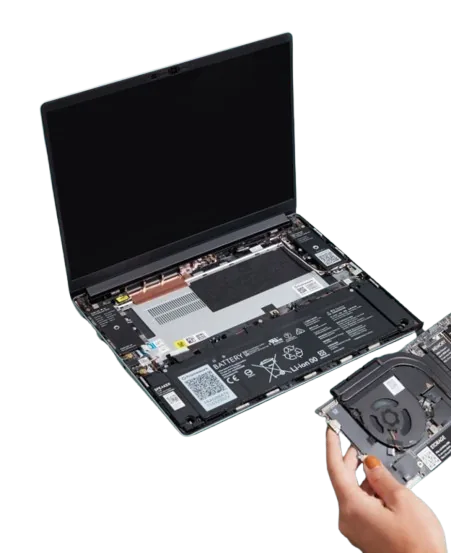
The catch: many thin and light laptops have RAM soldered onto the motherboard. Some have all of it soldered, so you can never add more. Others have some soldered memory plus one free slot. Laptops using LPDDR memory are always soldered. We check your exact model before quoting, so you never pay for an upgrade that can’t be done.
Filling two slots with matching sticks also lets the laptop run in dual-channel mode, which noticeably helps graphics performance on laptops without a separate graphics card.
When buying new (or refurbished) makes more sense
An upgrade is good value when the rest of the laptop is still decent. It stops making sense when:
- The processor is very old or very basic. An SSD will make an old dual-core laptop boot faster, but it will still struggle with modern websites and video calls.
- It can’t run Windows 11. Windows 10 reached end of support in October 2025. A laptop whose processor or TPM security chip isn’t supported by Windows 11 can’t stay on a supported, updated Windows — a real problem for anything you bank or work on.
- The RAM is soldered and too small for what you do now.
- Several other things need fixing — a worn battery, cracked hinges, a dim screen. Add up all the repairs and compare.
- You need something it can’t do, like dedicated graphics for engineering or design software.
In those cases, a refurbished laptop with a modern processor, an SSD and 16GB RAM may cost less than you expect. Our guide to refurbished vs second-hand laptops explains what to look for.
Quick decision guide
| Your laptop | Our usual advice |
|---|---|
| Decent processor, hard disk, 8GB RAM | SSD upgrade — great value |
| Already SSD, 8GB nearly full, free slot | RAM upgrade to 16GB |
| Soldered 8GB, SSD, heavy multitasking | Tune-up now, plan a replacement |
| Old dual-core, no Windows 11 support | Replace — refurbished is good value |
When to bring it to us
You can run the Task Manager check yourself. If it shows a busy CPU from apps you recognise, disabling startup programs (Task Manager → Startup apps) and uninstalling what you don’t use may be all you need — no upgrade required. If you see a hard disk, full memory or processes you don’t recognise, bring it in. We check the model, the slots and the overall condition, and tell you honestly whether an upgrade is worth it. Sometimes the answer is no.
SSD installation is part of Hardware Repair, from RM150 plus the drive, and RAM is quoted with the part. Back up important files before any upgrade, even though we transfer your data. See our SSD and RAM upgrade page and our computer sales and upgrades service, or visit us at Plaza Idaman, Gombak.