Few things are more frustrating than a printer that suddenly produces faded, streaky or blank pages right before a deadline. Before you buy a new one, try these fixes.
1. Check ink or toner levels properly
Use the printer’s own menu or software rather than guessing. One empty colour can affect the whole page on some printers.
2. Run the print-head cleaning cycle
Inkjet nozzles dry out when a printer sits unused. Run the built-in cleaning cycle once or twice, then print a nozzle-check page. Don’t run it over and over — it uses a lot of ink.
3. Reseat the cartridges
Remove and reinsert the cartridges or toner, making sure any protective tape is removed and everything clicks into place.
4. Use the right paper and settings
Damp, curled or the wrong type of paper causes smudges and jams. Check the paper type and quality settings in the print dialog.
5. Update or reinstall the driver
Blank pages or garbled text can be a driver problem, especially after a Windows update. Removing and reinstalling the printer often fixes it.
6. Restart everything
Turn off the printer, the computer and the Wi-Fi router, then turn them back on. It sounds simple, but it clears many connection and queue problems.
When to call a professional
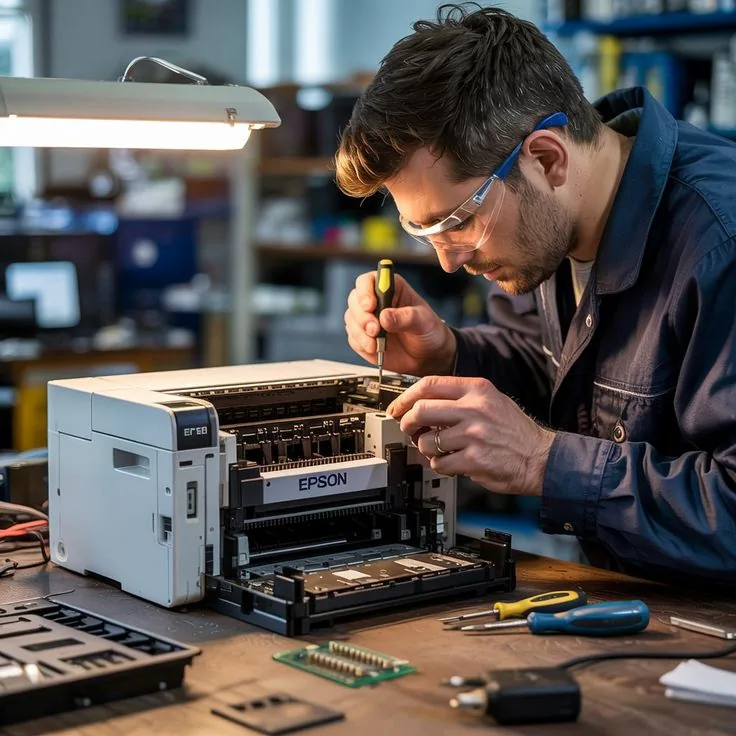
If prints are still streaky after cleaning, the printer shows ink-system or hardware errors, paper keeps jamming, or it keeps dropping off Wi-Fi, it needs a proper service. Shah G Tech repairs and sets up inkjet and laser printers in Gombak, and supports small offices with network printing. Diagnosis is free.