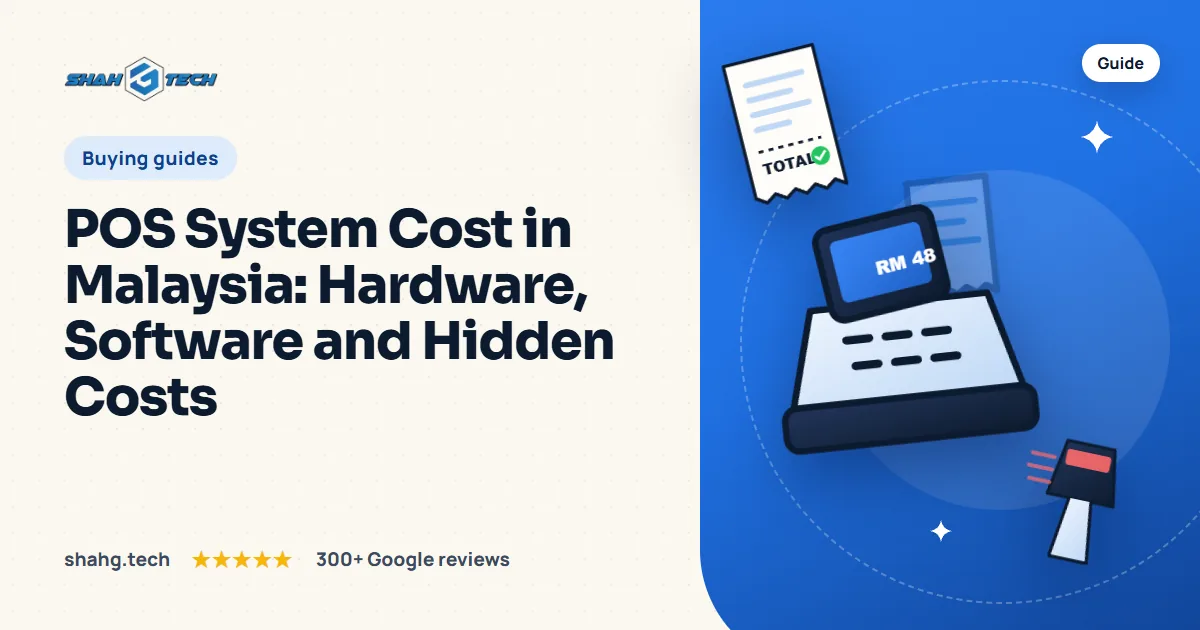
A POS system’s price in Malaysia is the sum of the hardware (terminal, receipt printer, cash drawer, scanner), the software (one-time licence or monthly subscription), setup and training, and ongoing support. The monthly fee is rarely the whole story — compare the total cost over two or three years, and ask what extra outlets, users or e-invoicing will add.
When shop owners ask us about POS system price in Malaysia, they usually mean one number. In reality there are five or six separate costs, and the cheapest-looking quote is often the one that leaves the most out. This guide breaks a POS down into its parts so you can compare quotes properly — and spot the costs that only show up after you sign.
We won’t quote market prices here, because they change with every brand, model and promotion. What doesn’t change is what you are paying for.
What makes up a POS system price in Malaysia
| Part | What it is | What moves the cost |
|---|---|---|
| Terminal | Tablet, PC or all-in-one POS unit | Screen size, durability, reusing what you own |
| Peripherals | Receipt printer, cash drawer, scanner | Connection type, paper width, wired or wireless |
| Software | The POS app and its modules | Licence vs subscription, outlets, users, add-ons |
| Setup | Product import, configuration, hardware install | How many products, how clean your list is |
| Training & support | Staff training, help when things break | Hours covered, on-site vs remote |
Hardware: what you actually need at the counter
The terminal. This can be an Android or iPad tablet on a stand, a normal Windows PC or laptop, or a dedicated all-in-one POS terminal with a built-in screen and sometimes a built-in printer. Tablets are compact. PCs are flexible and easy to repair. All-in-one units are tidy and built for counter life, but you are tied to that unit’s parts.
Receipt printer. Almost all POS receipt printers are thermal — no ink, just heat-sensitive paper. The two common paper widths are 58 mm and 80 mm. The wider paper is easier to read and fits more detail, the narrower one suits small counters and portable printers. Check the connection too: USB for one fixed counter, LAN or Wi-Fi if several devices print to it, Bluetooth for tablets.
Cash drawer. Most drawers plug into the receipt printer, not the computer. The printer sends a signal to pop the drawer open on a cash sale. That means the printer and drawer must be compatible — a detail cheap bundles sometimes get wrong.
Barcode scanner. A basic 1D scanner reads normal product barcodes. A 2D scanner also reads QR codes and barcodes on phone screens. Wireless scanners cost more but help when you scan heavy items on the floor.
Optional extras: a customer-facing display, a label printer for your own barcodes, a weighing scale if you sell by weight, and a small UPS so a power trip doesn’t kill the terminal mid-sale.
Software: licence or subscription?
POS software is usually sold one of two ways. Neither is automatically cheaper — it depends on how long you will use it and what is included.
| One-time licence | Monthly / yearly subscription | |
|---|---|---|
| Upfront cost | Higher | Lower |
| Ongoing cost | Support or upgrade fees may apply | Fixed fee for as long as you use it |
| Updates | Check what is included | Usually included |
| If you stop paying | Software keeps working (check terms) | Access may stop — check data export |
Also check how the software is priced. Many POS products charge per outlet, per terminal or per staff user. Some lock features like multi-outlet stock, loyalty points, table management or advanced reports behind higher plans. A plan that looks cheap for one counter can climb quickly when you add a second cashier or a second branch.
Setup and training: the part people forget
Someone has to load your products, prices and categories, create staff logins, set up the receipt layout with your business details, connect and test every piece of hardware, and train your team. If a vendor’s quote has no line for this, either it is “free” and minimal, or you are doing it yourself.
Your preparation changes the effort here. A clean spreadsheet of products — name, barcode, selling price, cost price, category — is quick to import. Products scattered across invoices and handwritten lists take far longer.
The hidden costs that appear later
- Thermal paper rolls — small, but you buy them forever.
- Payment fees — card terminals and QR payments carry charges from the bank or payment provider. These are separate from your POS and worth asking about.
- Extra users, outlets or modules — the price jump when you grow.
- Hardware replacement — printers and scanners on a busy counter wear out. Check the hardware warranty and who handles it.
- After-hours support — your busiest time may be outside the vendor’s office hours.
- Getting your data out — if you leave, can you export products, customers and sales history? Some systems make this hard.
- Internet and backups — cloud POS needs a stable connection. Ask what happens when the line drops.
E-invoicing readiness
LHDN’s e-invoicing system, MyInvois, affects how businesses record and report sales. Whether and when it applies to you depends on LHDN’s rollout rules, so check the official pages rather than a vendor’s sales pitch. When comparing POS quotes, ask whether the system can connect to MyInvois, export sales in a usable format, or neither — and whether that costs extra. We explain the concept in plain language in our e-invoicing and POS guide.
How to compare two POS quotes fairly
- List every item in each quote: hardware, software, setup, training, support.
- Work out the cost over two or three years: hardware + setup + (monthly fee × number of months) + expected consumables.
- Price your next step too — one more cashier, one more outlet.
- Ask who you call when the printer stops on a Saturday night, and how fast they respond.
- Ask for a demo using your own products and your busiest scenario.
For the features side of the decision — checkout speed, stock, reports and staff roles — see 7 things to check when choosing a POS system.
When to talk to us
If you sell a handful of items and serve a few customers an hour, you may not need a full POS yet. A simple sales app on your phone or a proper cash book can be enough for now — we’d rather tell you that than sell you hardware you won’t use.
If queues are getting longer, stock never matches, or you are opening a second counter or outlet, it is time. Our POS system setup covers retail shops and F&B, including the receipt printer, barcode scanner and cash drawer, product import, staff training and support for the hardware we set up. We quote based on your outlets, users and hardware, and we’ll tell you what you can reuse. Not sure what fits a kedai runcit versus a café? Read what each type of shop really needs, then WhatsApp 019-299 4991 or drop by Plaza Idaman, Gombak.